
Ever tried fixing one typo in a scanned PDF and ended up burning twenty minutes on it? That’s usually the moment people start looking for an AI tool for PDF editing. Older PDF editors were fine for the basics: adding a signature, merging a couple of pages, rotating a scan that came in sideways. But the second you needed to rewrite a paragraph or pull numbers out of a table, you were exporting to Word, editing there, then converting back and hoping the formatting survived. It usually didn’t.
AI has cleaned up a lot of that mess. The better PDF tools now actually read a document instead of just displaying it; they recognize paragraphs, tables, and headings, which means you can edit text directly, get a quick summary of a long report, or lift structured data out of an invoice without retyping anything.
So here’s a rundown of what these tools actually do, a few worth trying, and how to pick one without paying for a bunch of features you’ll never touch.
What Actually Makes a PDF Editor “AI-Powered”
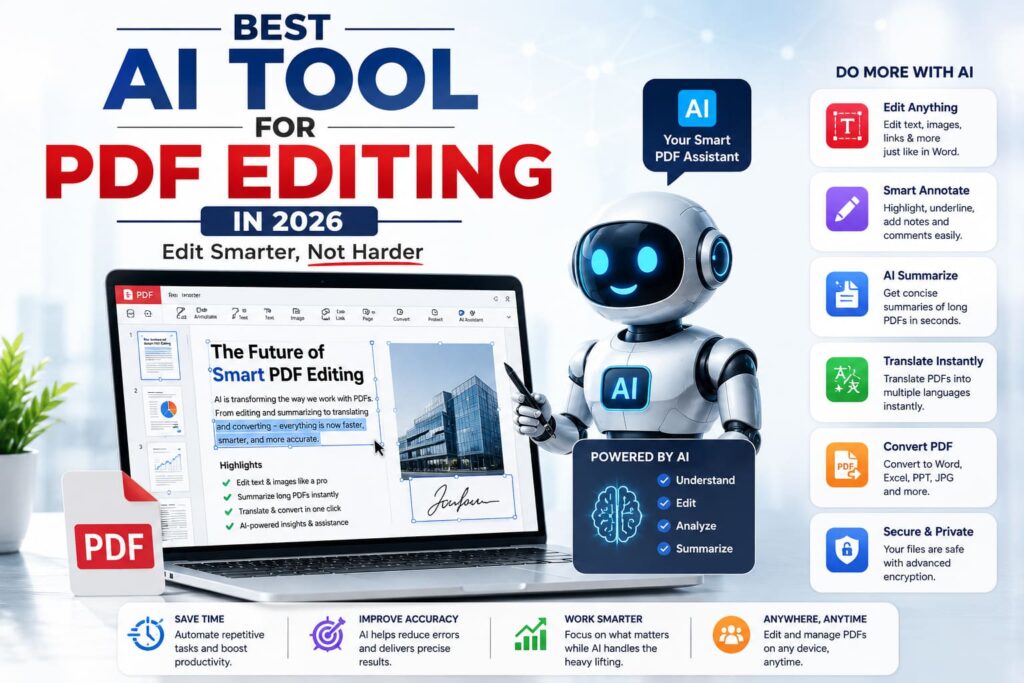
A plain PDF editor treats your file like a static image with a few clickable fields on top. An AI-powered one understands what’s actually in the document. That usually shows up as:
- Better OCR – turning scanned or image-heavy PDFs into text you can actually search and edit
- Editing that respects layout – rewrite a sentence and the rest of the page doesn’t fall apart
- Summaries – a 40-page report becomes a few bullet points you can skim
- Table extraction – pull data straight into a spreadsheet instead of copying it by hand
- Plain-language commands – type “shorten this section” or “translate page 3” and it just does it
None of this is some breakthrough technology on its own; it’s the same document-understanding tech behind a lot of AI writing tools. Applied to PDFs specifically, though, it just removes a lot of tedious manual work.
A Few Popular Options
| Tool | Best For | Standout AI Feature | Free Plan |
|---|---|---|---|
| Adobe Acrobat (AI Assistant) | Professionals & teams | Document Q&A, summarization | Limited trial |
| Smallpdf | Quick, casual edits | AI-assisted OCR and compression | Yes (limited) |
| PDF.ai | Chatting with long documents | Ask questions about the PDF’s content | Yes (limited) |
| ilovepdf | Batch editing/conversion | AI-based text recognition | Yes (limited) |
| Sejda | Privacy-conscious editing | Smart form and field detection | Yes (limited) |
Worth noting: pricing and free-tier limits on these change fairly often, so check the provider’s own page before you commit to anything paid.
How to Actually Pick One
There’s no single “best” tool here it really comes down to what you’re doing most days.
Editing legal or business documents regularly? Go with something that has solid security and version history, like Acrobat. Just need to knock out a quick one-off edit? A browser tool like Smallpdf or ilovepdf sets up faster than anything desktop-based. Spending most of your time reading and summarizing long documents instead of editing them? A chat-based option like PDF.ai will save you more time than a traditional editor ever could. And if privacy is the main concern, look for a tool that processes files locally or deletes them after a short window. Sejda leans that way.
The honest rule of thumb: don’t pick based on which tool has the longest feature list. Pick whatever removes the specific bottleneck you’re actually dealing with right now. If your team also drafts a lot in Word before converting to PDF, it’s worth pairing this with a guide on AI writing assistants, so the whole document workflow feels less disjointed.
Where This Actually Saves Time
- Cuts out hours of retyping scanned documents by hand
- Fewer formatting headaches than the old export-edit-reimport cycle
- Long documents get a lot less painful to get through, thanks to summaries
- Data entry speeds up since tables extract automatically
- Less of a learning curve overall; plain-language commands beat digging through menus
Where It Still Falls Short
These tools are genuinely useful, but they’re not perfect. Complex layouts, handwriting, and low-quality scans can still trip up OCR. Free plans tend to cap file size or how many pages you can process a month, and the more advanced AI features, like chat-based Q&A, are almost always behind a paywall somewhere. And since you’re uploading to the cloud, it’s worth glancing at a provider’s data retention policy before sending anything sensitive their way. Adobe’s own PDF services documentation is a decent reference for how one of the bigger providers handles this.
Bottom Line
An AI tool for PDF editing won’t reinvent how you work overnight. What it does is quietly cut out the annoying parts: retyping scanned text, reformatting after every edit, scrolling through fifty pages just to find one figure. Try a free plan on one or two tools from the table above, run them against something you actually work with day to day, and go with whichever one saves you the most clicks.
FAQs
1. What’s the best free AI tool for PDF editing? Smallpdf and ilovepdf both have decent free tiers with basic AI-assisted editing just watch the file size and monthly usage caps.
2. Can AI tools edit scanned PDFs? Yes, most of them. The better AI PDF editors use advanced OCR to turn scanned images into text you can search and edit like a normal document.
3. Are AI PDF editors safe for confidential documents? Depends entirely on the provider. Look for clear data retention policies, encryption, and ideally an option for local or on-device processing if the document is sensitive.
4. Do these tools work on mobile? Most of the bigger names, Adobe Acrobat and Smallpdf included, have either a dedicated app or a mobile-friendly web version.
5. Can AI summarize a long PDF report on its own? Yes, tools like PDF.ai and Adobe’s AI Assistant can summarize and answer questions about a document without you having to read the whole thing first.